LockFlare

From nothing to a server on your map.

There is no account to log into and no cloud to sign up for, so the first ten minutes look different from what you are used to. Here is every screen, in the order you will meet it: the account, your key, and the first server. Nothing below is a mock-up — it is the real flow, start to finish.

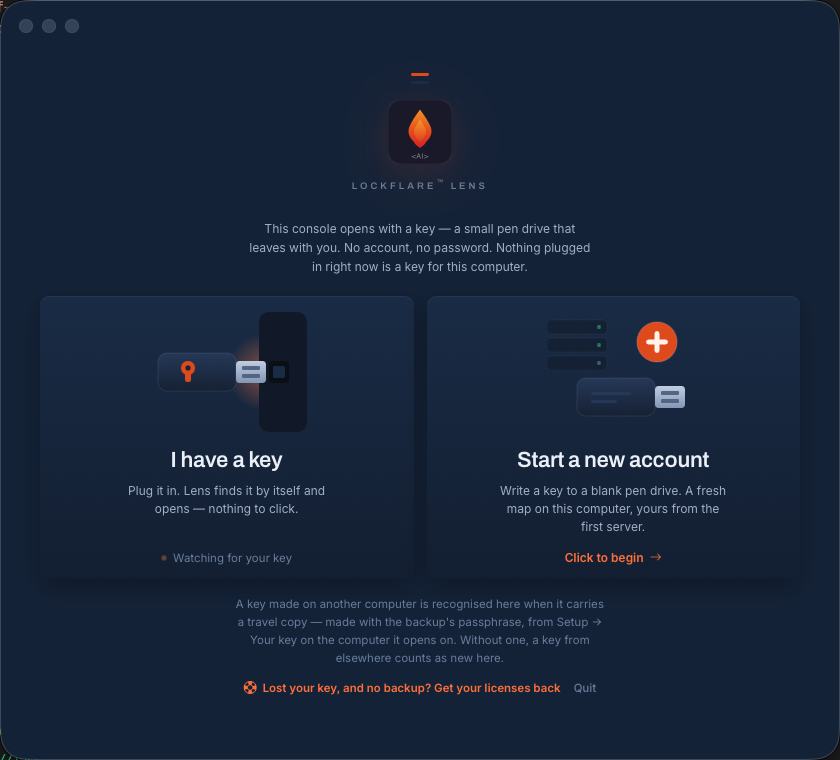
The LockFlare Vigia door: two ways in — plug in a key you already have, or start a new account and write one to a blank pen drive
The door. A key you already have, or a new account.

Three things happen, in this order

About ten minutes in total, most of it waiting for a download. You will need the SSH login of one server you want to manage — and, if you want your key on a pen drive, a blank USB stick small enough to keep in a pocket.

1 · The account

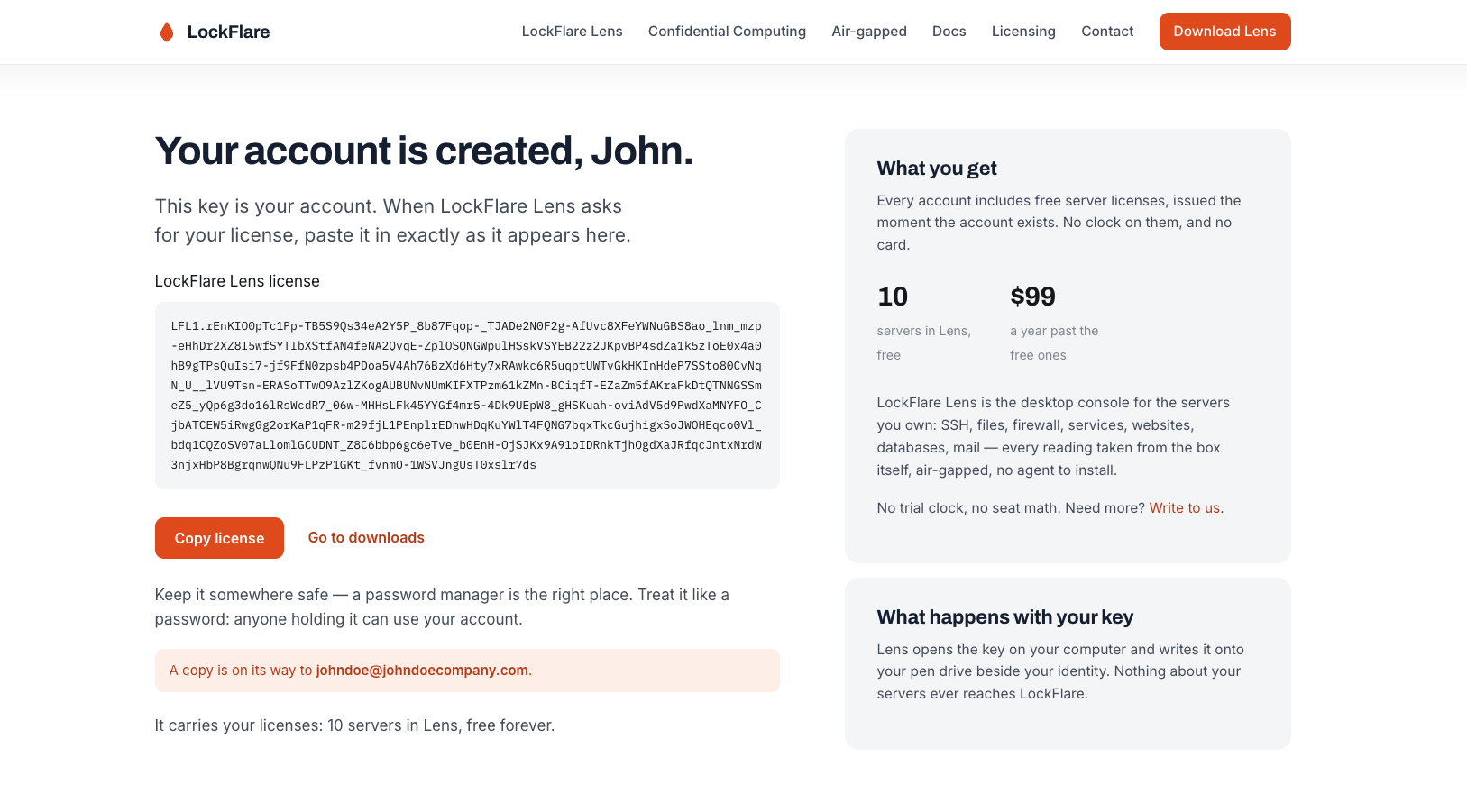
One form on lockflare.com, no card. It gives you a product activation key: a long signed string that is your account. It arrives by email too.

2 · Your key

Vigia asks where your key lives: on a pen drive that leaves with you, or on this computer behind a password. Either way it is encrypted and bound to that computer — and you can move it from one to the other later.

3 · The first server

Add a box. A console needs nothing at all; a Vigia-managed server takes a licence — one of your ten free ones, issued on the spot.

1 · The account, and the key that is your account

Open Vigia for the first time and it offers two doors: plug in a key you already have, or start a new account. Choose the second and it asks for a product activation key — and tells you where to get one, because getting it happens in your browser, not in the app.

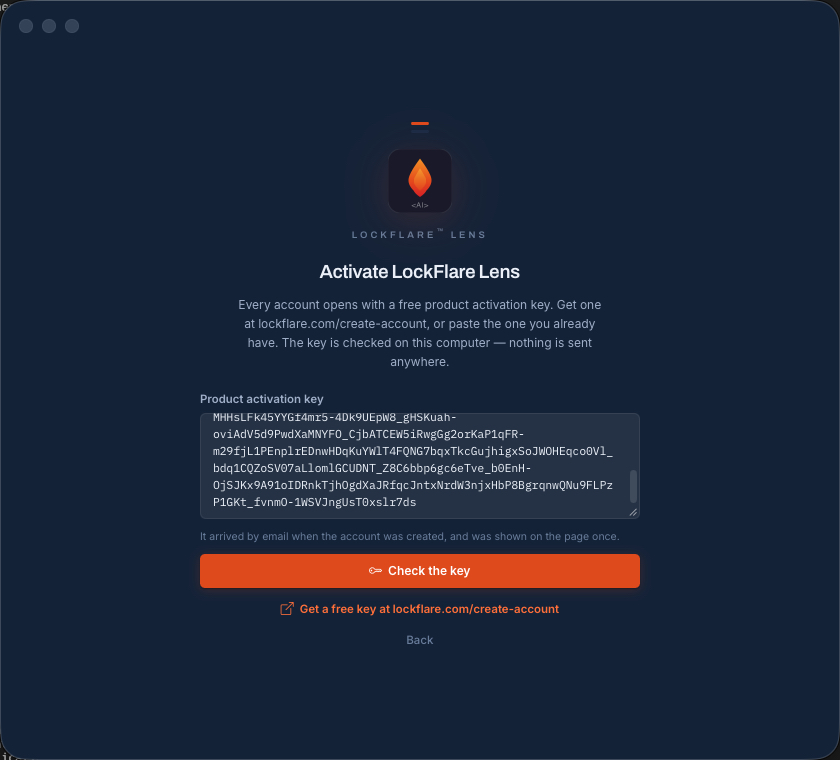
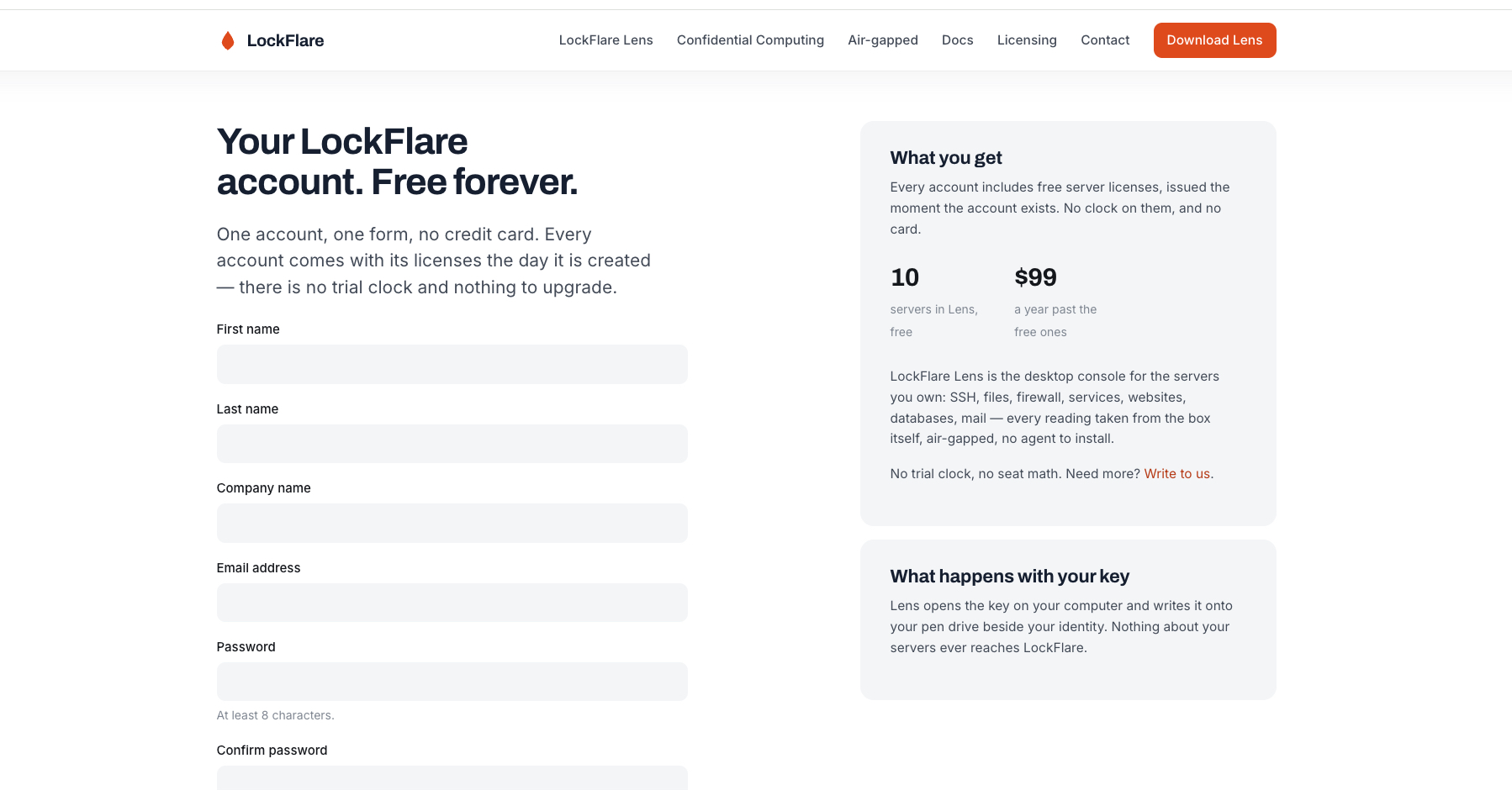
The form on lockflare.com is one page and no credit card. What comes back is the key itself, shown once on the page and mailed to you as well. Copy it, paste it into Vigia, and press Check. That check happens on your computer: Vigia opens the string with the public half it ships with and verifies LockFlare's signature locally. Nothing is sent anywhere, which is why it works with the network unplugged.
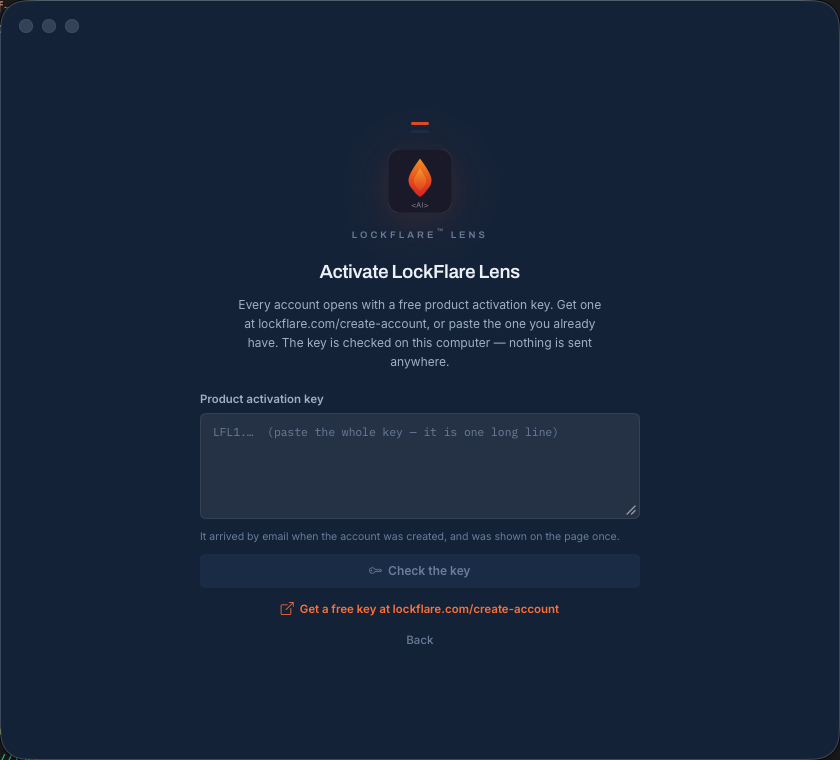
Activate LockFlare Vigia: paste the product activation key, or follow the link to get one free
Paste a key, or take the link to get one.
The create-account form on lockflare.com: one page, no credit card, ten servers free
One form, no card. Ten Vigia-managed servers, free forever.
The account licence shown on the page and sent by email
Shown once here, and mailed to you as well.
The activation key pasted into LockFlare Vigia and checked on this computer
Pasted, and checked here — the signature is the proof, and nobody is asked.

2 · Your key: on a pen drive, or on this computer

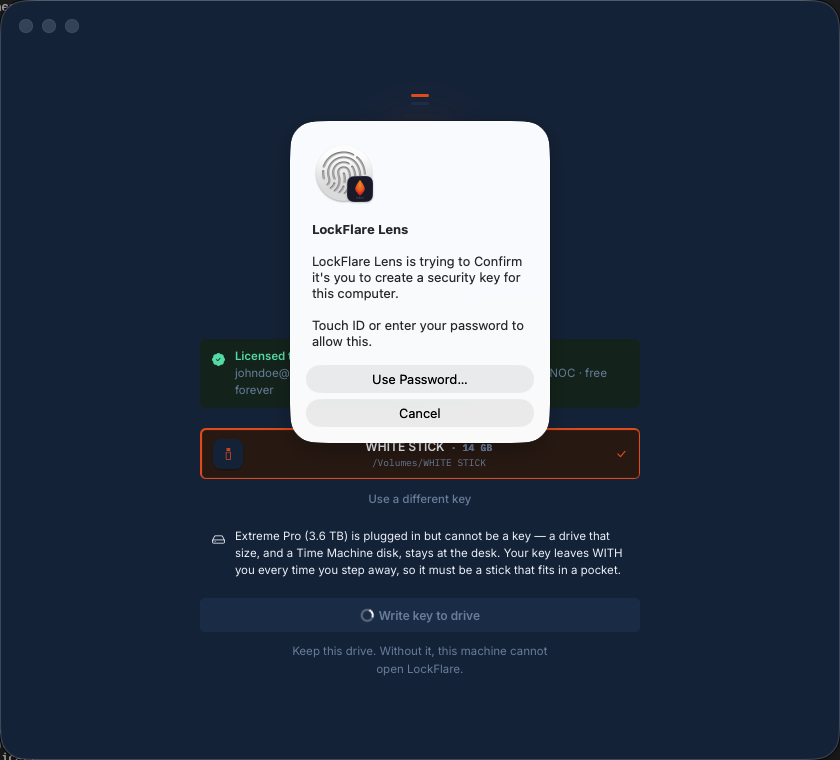
Now Vigia asks one question: where does your key live? The screen names the account it is about to write — who it is licensed to, the email, how many servers — and offers two homes for it. Both hold the same thing: an encrypted key whose private half only opens on this computer, with your licence beside it. What differs is what protects it.

On a pen drive

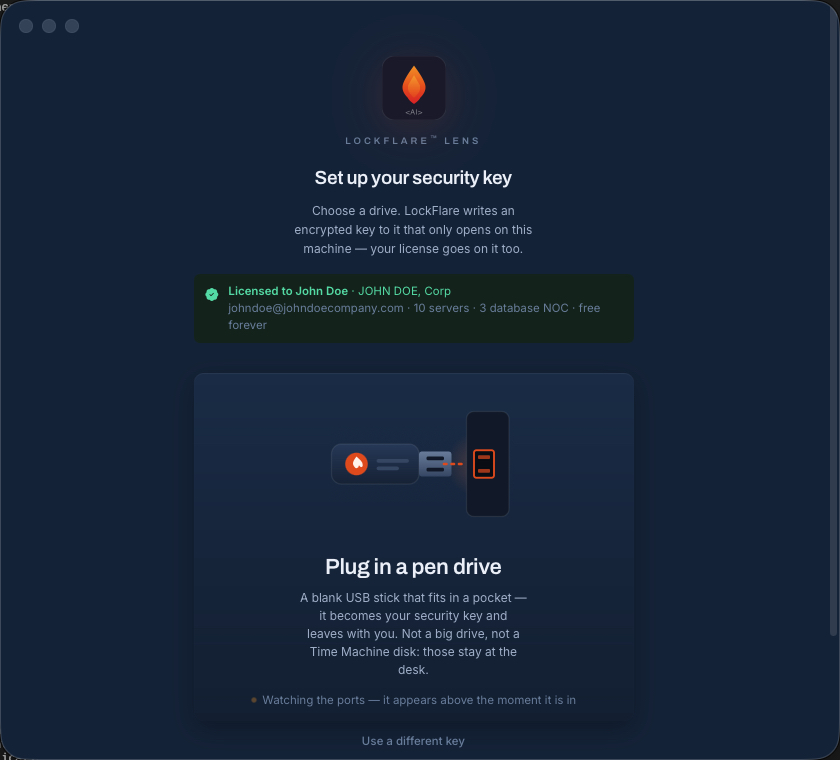
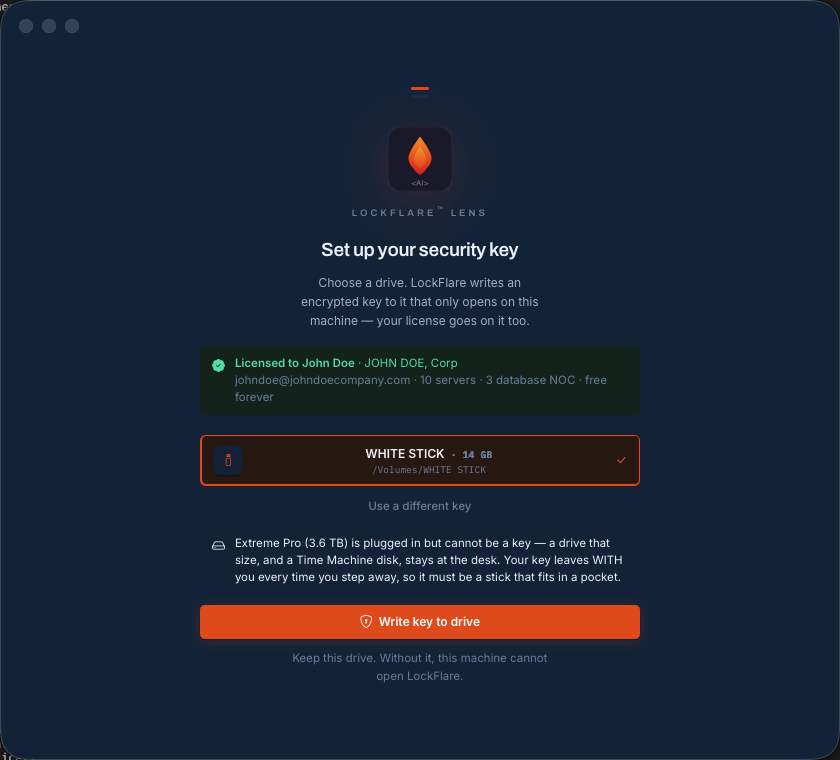
Any blank USB stick small enough to leave in a pocket — anything over 128 GB is refused, and so is a Time Machine disk, because a drive nobody would carry is not a second factor. Press write, then Touch ID or Windows Hello, once. No password is created: the drive in your pocket is the protection, and pulling it out locks Vigia.

On this computer

Nothing to carry. You choose a password — twelve characters at least — and it seals the key: without it the file on the computer opens nothing, even for somebody holding the computer. Vigia asks it each time it opens, then Touch ID or Windows Hello where the computer has one.

Change your mind whenever you like

Setup has a page for it: Move to a pen drive, or Move to this computer. It is the same account either way — same key, same servers, same saved logins, same licences. The new home is written and proven to open before the old one is taken away, so a move that fails leaves you exactly where you were.

The three screens below are the pen drive's path. The computer's path is shorter: the password, twice, and you are in.

Set up your security key: plug in a blank pen drive, with the licensed account named above it
A blank stick. The account it will carry is named above it.
Writing the encrypted key to the pen drive in LockFlare Vigia
Written: an encrypted key that only opens on this machine.
Touch ID asked once after the key is written
Touch ID, once. Key first, biometric second — that is the whole door.

3 · The first server

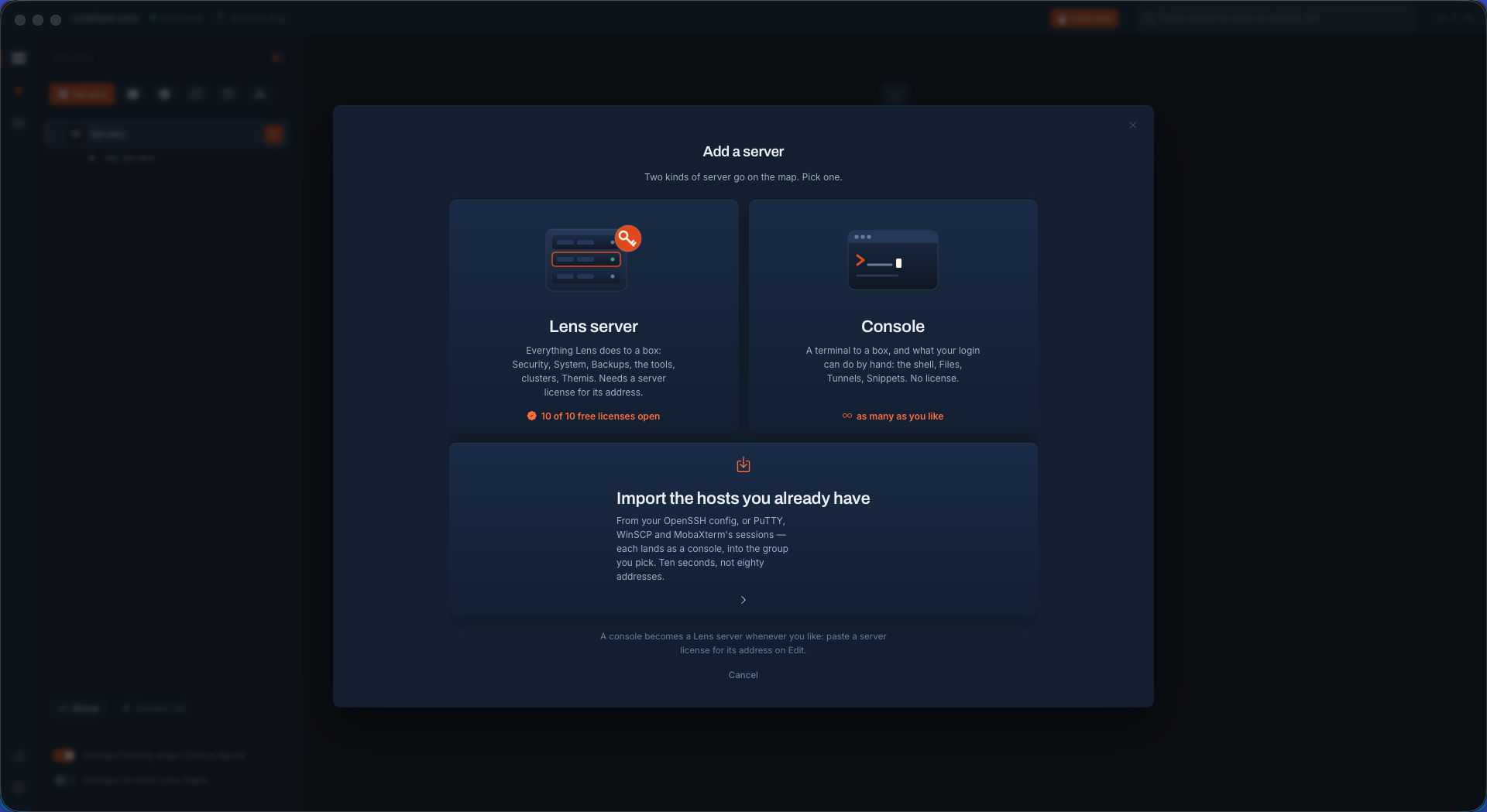
You are in, on an empty map. Add a server and Vigia asks which kind. A console is a box Vigia is a terminal to — shell, files, tunnels, history — and needs no licence at all, so if you only want the terminal you can stop reading here and add as many as you like. A Vigia server gets everything Vigia does to a box as root, and that needs a licence for its address.

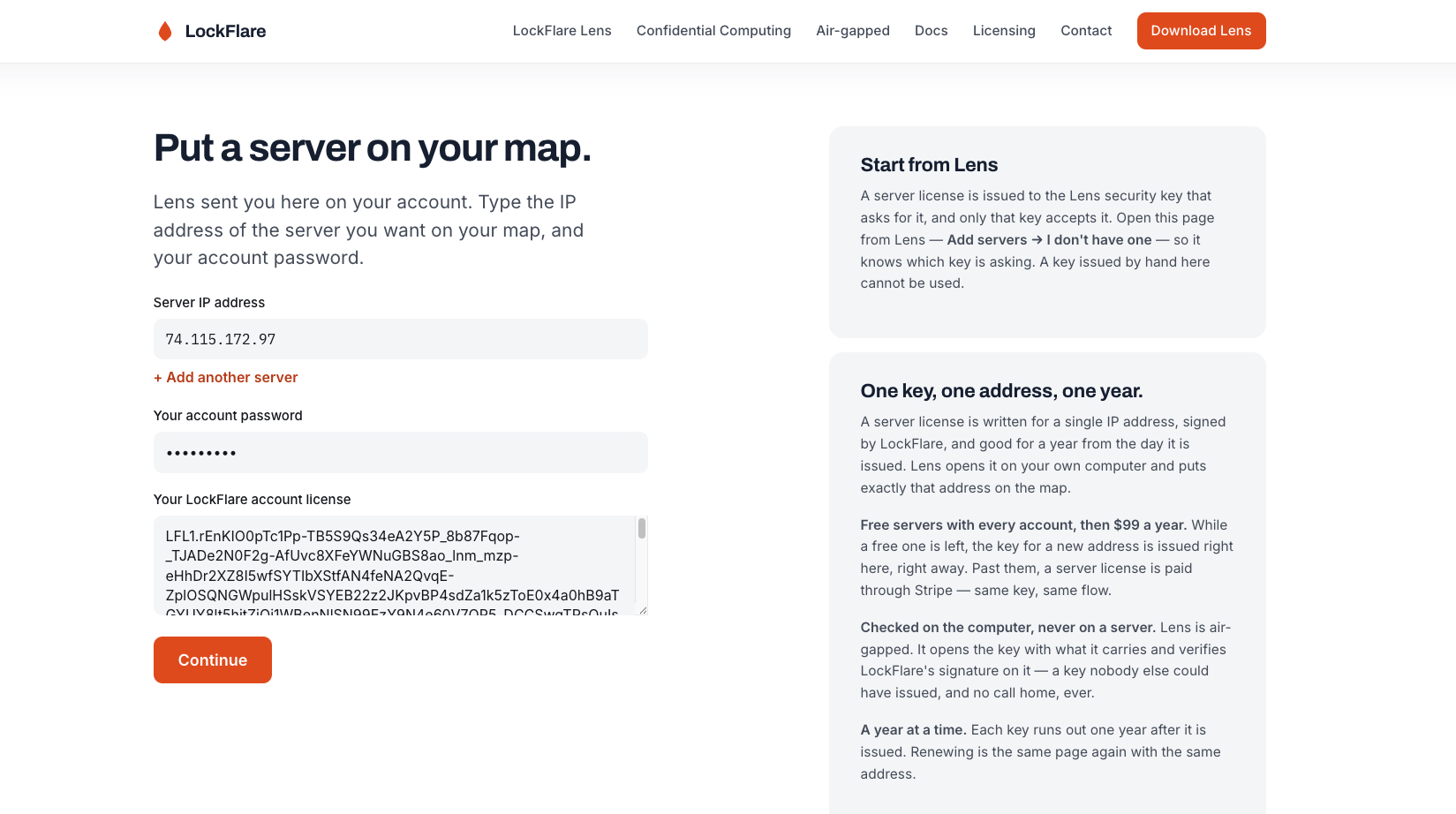
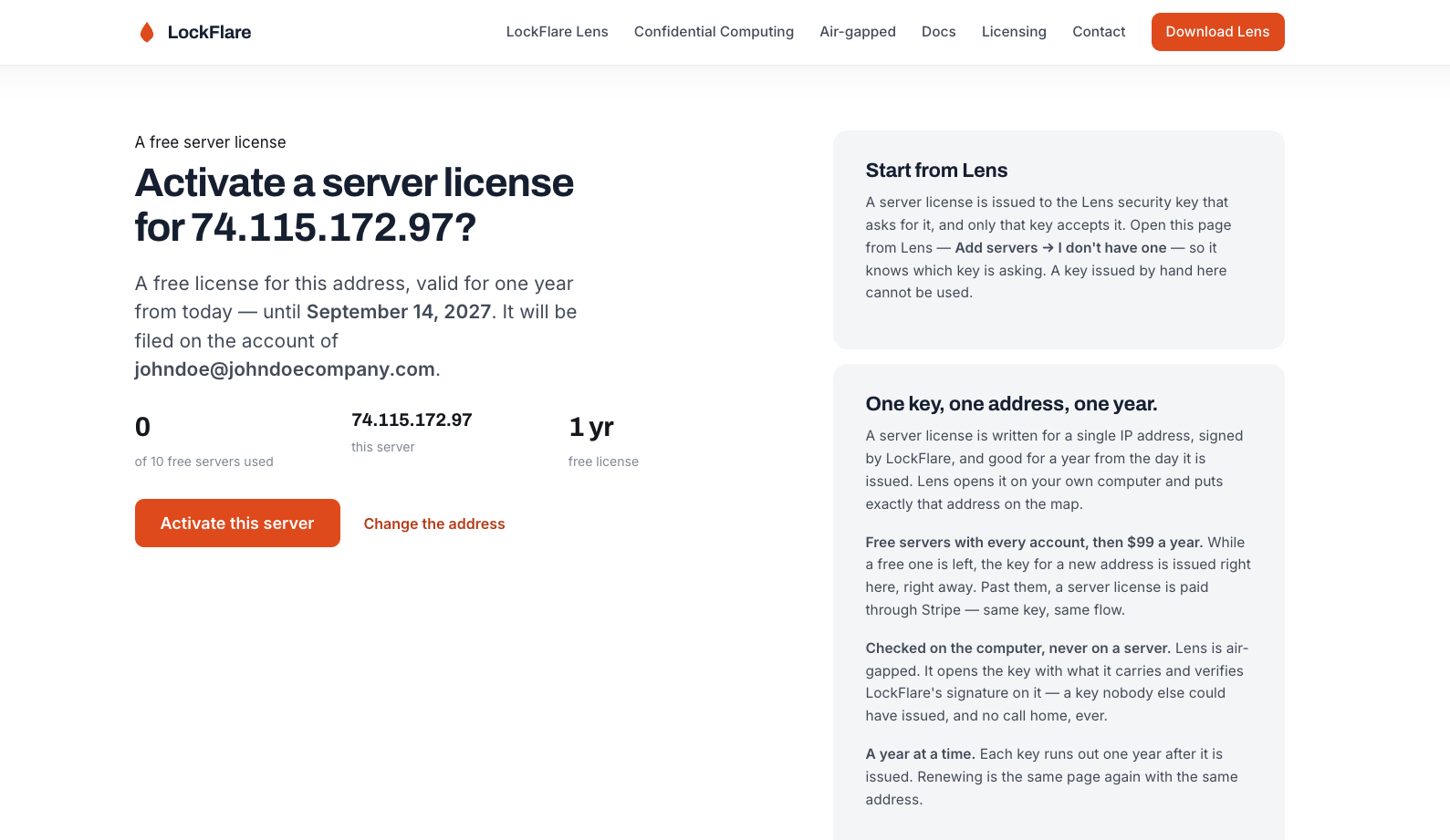
No licence yet? Press "I don't have one" and Vigia opens the licence page in your browser, with the account already filled in so the page knows which key is asking. Type the server's IP address and your account password, confirm, and the key is issued on the spot — one of your ten free ones, no card, nothing to wait for.

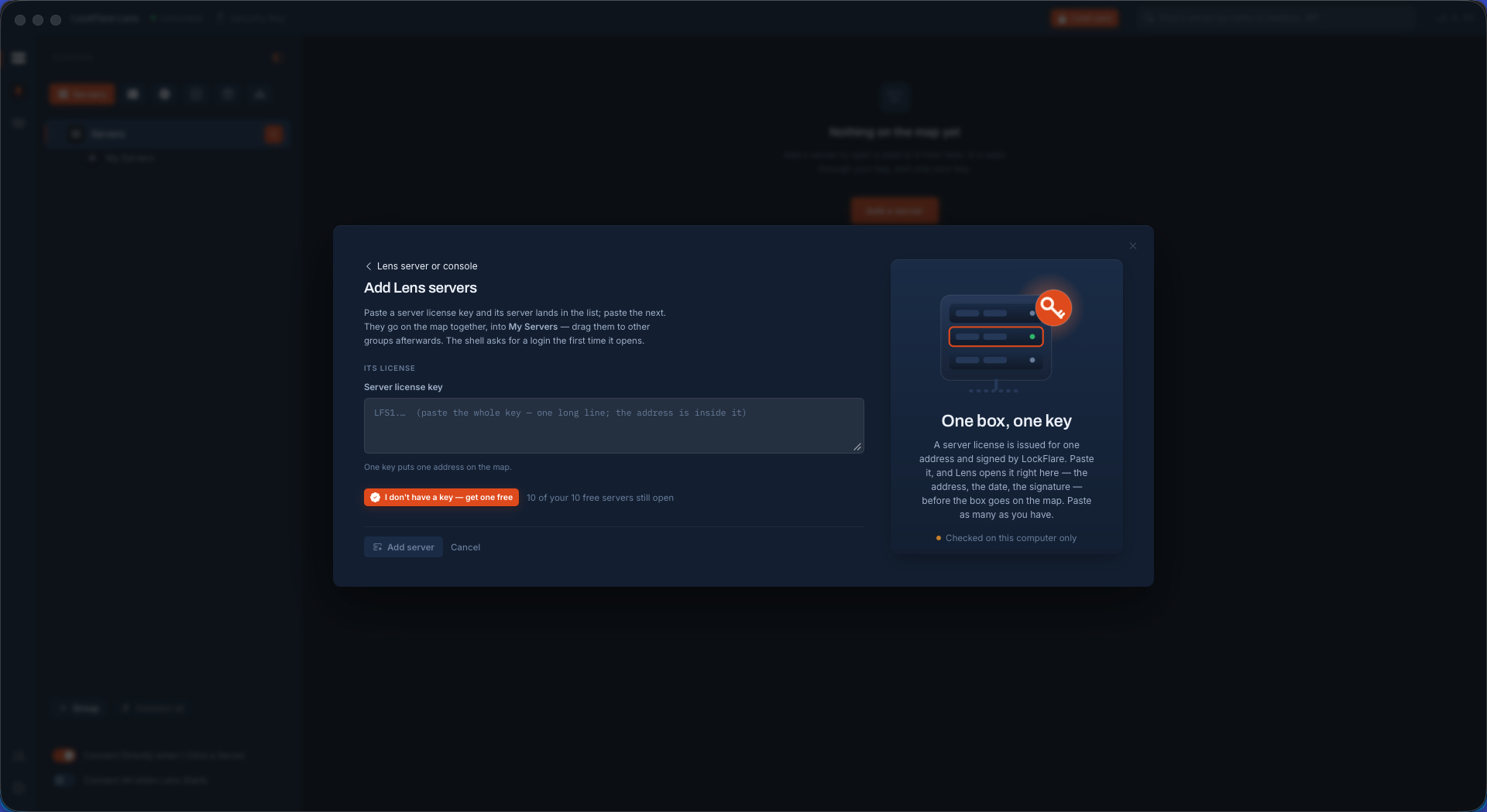
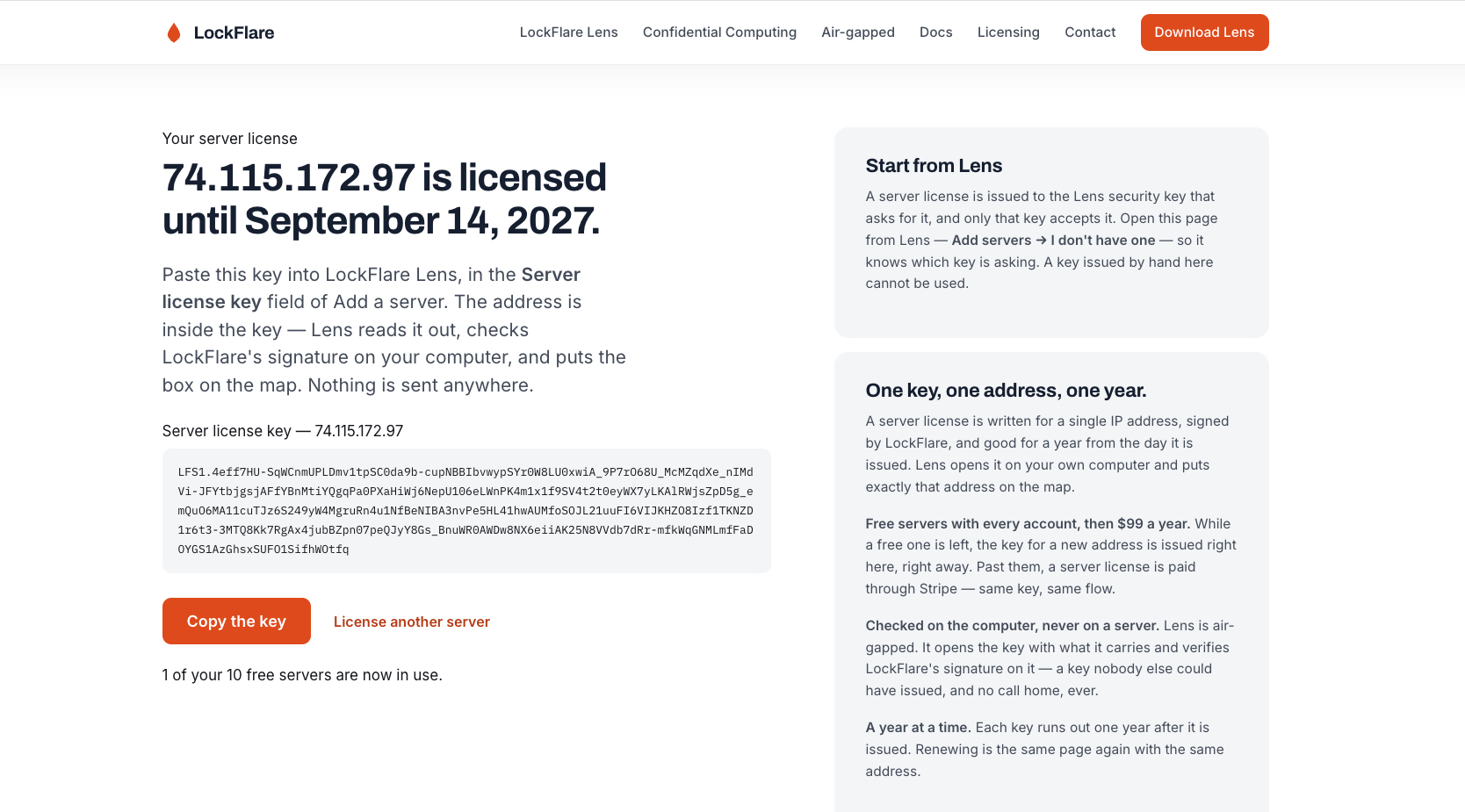
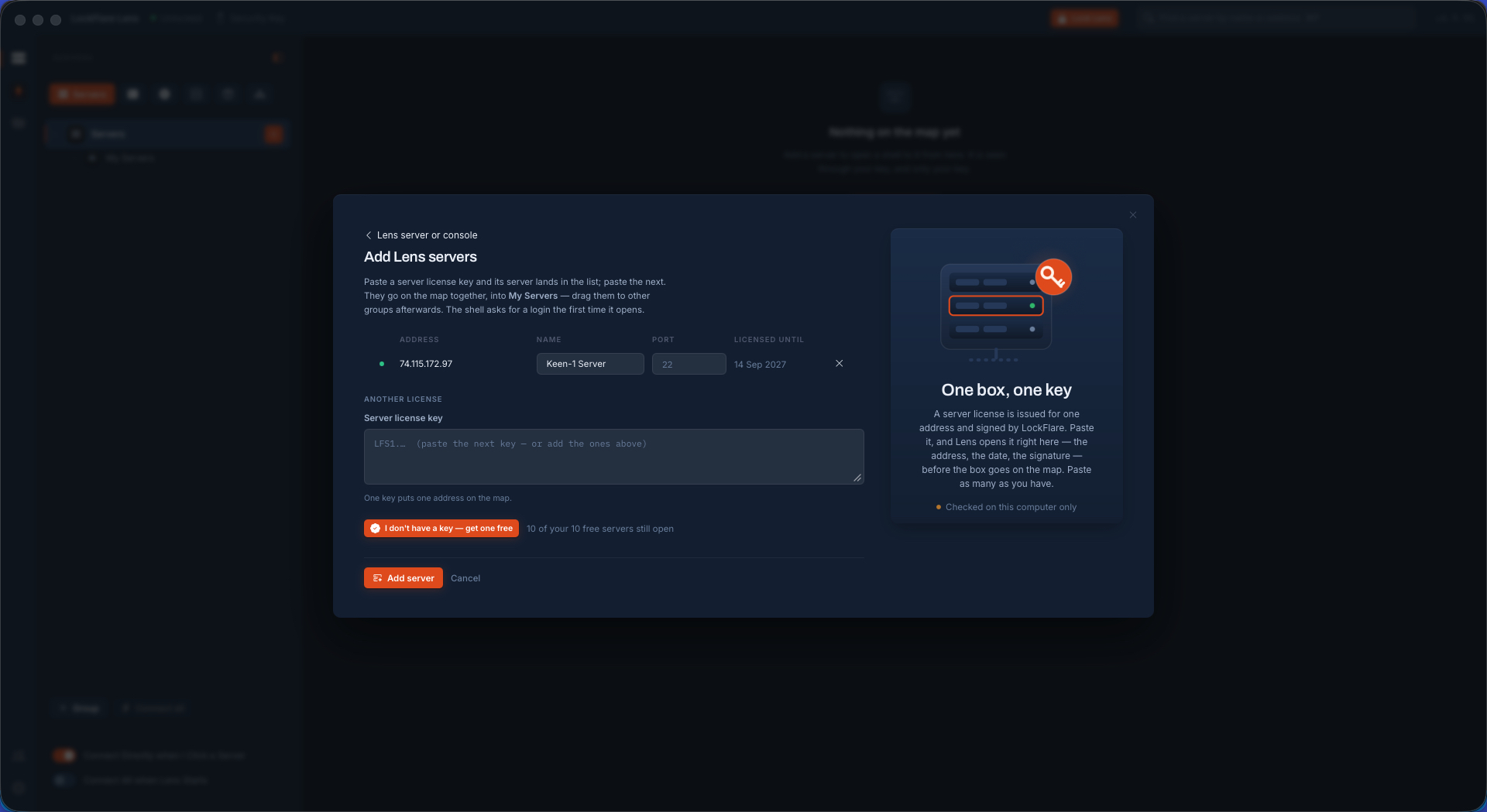
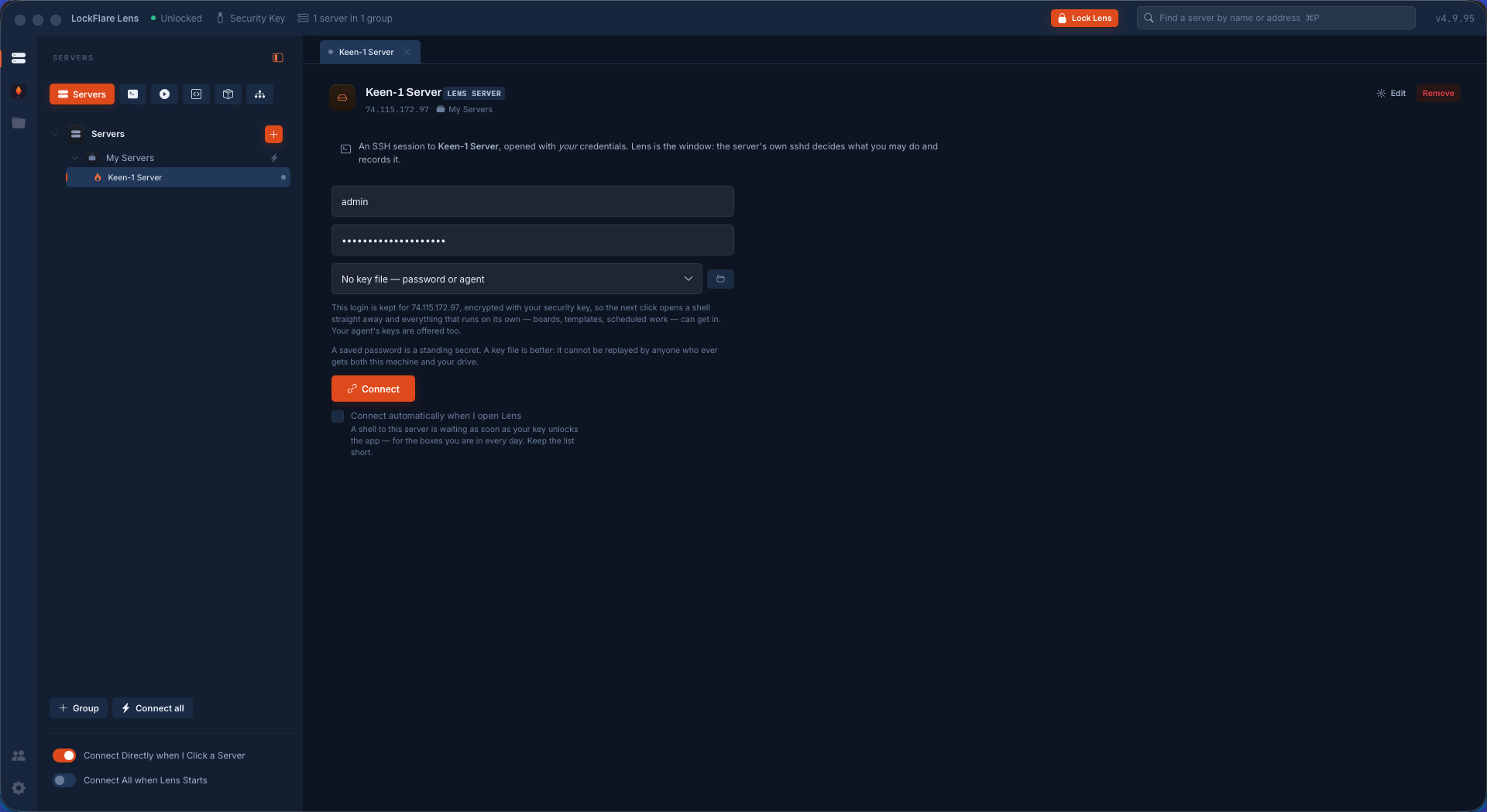
Copy it, paste it back into Vigia, and the address comes out of the key itself. The server lands on the map. Click it, give it the SSH login you already use, and you are on the box.

Add a server in LockFlare Vigia: a Vigia-managed server or a console
Two kinds. A console needs nothing; a Vigia server needs a licence.
No licence yet: the button that opens the licence page with the account filled in
No licence yet — this opens the page that issues one.
The licence page: the server's IP address and the account password
The address and your account password. Nothing about the server itself.
Confirming the server licence before it is issued
Confirmed: one of the free ten, valid for a year.
The server licence key, ready to copy
The key, with the address signed inside it.
The server licence pasted into LockFlare Vigia
Pasted back. Vigia reads the address out of the key — you never type it twice.
The server on the LockFlare Vigia map, ready to open
On the map. Click it and give it the SSH login you already use.
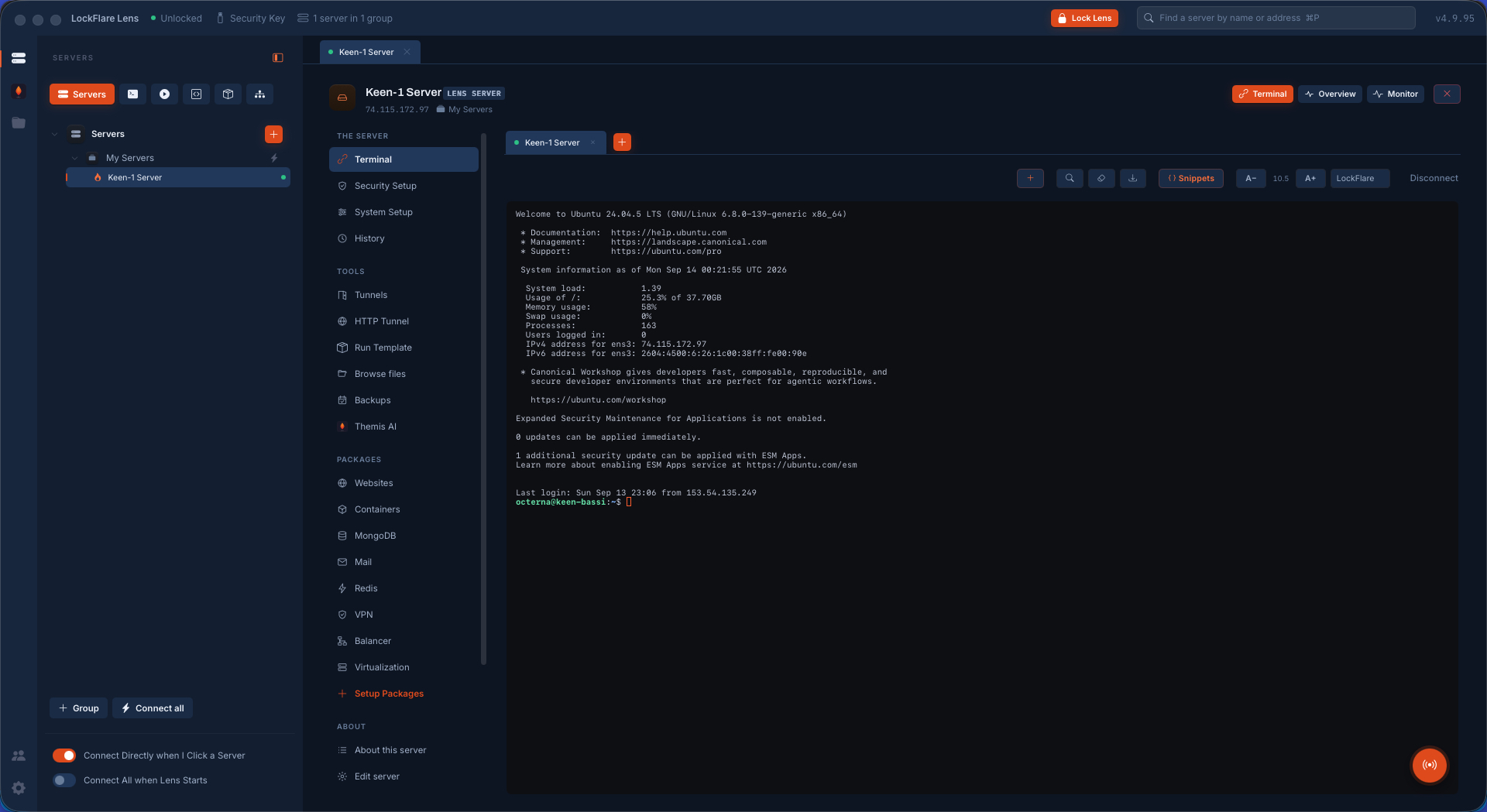
Connected: a shell on the server with the whole Vigia rail beside it
In — with Security Setup, System Setup, the packages and Themis on the rail beside the shell.

Do these two things next

Five minutes now, and the worst day later is an inconvenience instead of a disaster.

Turn on the encrypted backup

Setup → Encrypted backup. It writes the whole map, the saved logins, the certificate vault and your snippets beside your key, sealed twice — on the drive, or on the computer, where Save a backup file lets you keep a copy somewhere else. We have never held a copy of any of it, so this is the copy.

Your key

Make a travel copy or a duplicate

A travel copy lets the same identity open on a second computer. A duplicate drive is a twin for the drawer; with the key on the computer, a backup file kept elsewhere does that job. Either way a lost stick or a dead laptop is an annoyance, not the end of your map.

How they work

Then go and look around

Security Setup will tell you how exposed that box is before you change anything. Or import your whole SSH config as consoles and have the fleet on screen in a minute.

Everything Vigia does

Questions people ask at this point

What if I lose the pen drive, or forget the password?

Your licences come back: recovery asks for the account email, its password and the address of one licensed server, mails you a code, and returns everything as one bundle. Your map and saved logins come back only from your own backup — which is why the section above exists.

Can I use Vigia on two computers?

Yes, with a travel copy of the key — the same identity, so every server licence still holds. Or give a colleague their own key; seats are unlimited and nobody counts them.

Do I have to license every server?

No. Consoles — terminal, files, tunnels, history — are unlimited and free. Only what Vigia does to a box as root is licensed, and ten of those are free forever.

Does any of this reach LockFlare?

Two things ever do: the email on your account and the addresses you license, so the licence can be reissued. Nothing else, ever. How that works.

Ten minutes to your first server

Download Vigia, create the account, and put your first server on the map.

Download Vigia